Showing posts with label Tricks. Show all posts

Sunday, 23 October 2011

Espier Launcher:iOS Skin for Android

Espier LauncherAre you an Android fan who secretly admires the iOSinterface? Well, our Chinese friends have come up with an Android launcher that is a shameless copy of iOS. The skin offers the closest iOS experience you can have on your Android. It not just changes the layout and icons, but also supports dynamic display of information. Moreover, it allows you to organise app folders the iOS way.


Other features include:
  • Support for adding shortcuts on the desktop.
  • Supports a variety of icon sorting methods.
  • Easily search for applications, contacts, SMS, e-mails, and so on.
  • Support for desktop configuration restore/backup.
  • Press and hold any icon to open desktop editing mode.
  • Sliding the taskbar into the system function area reveals multiple system functions.

4.2 MB 
Multi-Platform

Sunday, 16 October 2011

7 Creative Facebook Timeline Designs [PICS] !!


If You are also creative with your Facebook Timeline, Let us Know in comments and get yourself published here.

Report: Malware Infection Rates Rise In India

Microsoft has just released its volume 11 of its Security Intelligence Report or SIR for the first and second quarter of 2011, which has published some alarming findings for India. While there has been a general trend in a decrease in malware infections globally, there appears to be an opposite trend in India.

Newer versions of Windows operating system have been found to be the least affected, possibly due to several vulnerabilities being patched in the newer releases. Similarly, 64-bit versions were found to be consistently less affected than 32-bit versions, possibly because of the more popularity of the latter, thus the reason why cybercriminals target them more.

Of the various threat types, Adware have been dominating, thanks to a new pair of families Win32/OpenCandy andWin32/ShopperReports.Other potentially unwanted software families such as Win32/Keygen which propagates through keygenerators, has also seen an increase in detections.

Worms and Trojan Downloaders & Droppers showed a downward trend, while viruses have been steadily accounting for at just under 5 percent of the total infections. The report notes that a change in behaviour of the AutoRun feature in older Windows could have contributed to the decline in the number of work families as a whole. Spyware infections have been the least bothering of all.


Malware Infection Rates Rise In India: Report


In India, the picture is completely different. Worms (38.3 percent) and Trojans (33.6 percent) infections are found to be the most common, while Adware is somewhere in the middle. Viruses also amount to around 25 per cent of all infections, although spyware infection levels are as low as worldwide. The report also stated that India hosted 11.003 percent of all spambot IP addresses in the second quarter of 2011, which is up from 10.895 from the previous quarter.

How does malware spread?


Malware Infection Rates Rise In India: Report


There are different ways in which malware threat propagation takes place.
* User Interaction Required: In this method, the user is prompted to perform an action for the computer to be compromised. In such cases, users may be unknowingly lured into performing these actions, such as making them believe that their system is infected, redirecting them to a website from where they are asked to download a malware masquerading as an anti-virus software to "cure" their "infected" system.
* AutoRun USB: With USB storage devices fast replacing optical media, the malware spreads through the AutoRun feature of Windows for such drives.
* Autorun Network: In this case, the AutoRun feature is applied to mapped infected network volumes.
* File Infector: The threat spreads by modifying files, usually application or executable files, also known by EXE, SCR, or DLL extensions. Codes in these files are overwritten by the infectious code to help propagate the malware.
* Exploit: Zero-day: Vendor has not released a security update to address the vulnerability at the time of the attack.
* Password Brute Force: Threats of these type, spread by attempting brute force password attacks on available volumes, such as by using the "net use" command.
* Office Macros: Threats also spread by infecting Microsoft Office documents with malicious VBA macros.
* Emails: Spam accounts for the most worldwide email traffic and naturally, malware proliferate.
* Malicious websites: Attackers are known to conduct phishing attacks and distribute malware using malicious websites, which appear completely legitimate, fooling the user into disclosing confidential information or even downloading a malware infected application, which then hijacks the system. Although mostly affecting financial websites, a sizeable phishing interest has been seen in social networking and gaming websites recently.

The report states that more than a third of the malware detections were attributed to malicious software that misused the AutoRun feature. 6 percent were found to be exploits or malicious code attempting to exploit vulnerabilities in the application or operating system. Adobe Reader documents have also been consistently found to be more likely to be vehicles of exploits, while the RTF or Rich Text Format was also found to be a likely candidate.

How to combat these security threats?
* Keep all software on your systems updated. This includes those related to the OS and also third party.
* It is better to use Microsoft Update instead of Windows Update, because the former updates all Microsoft software installed on the system including MS Office suite, while the latter updates only Windows operating system.
* Install an anti-virus software from a trusted vendor and keep it updated. Run periodic scans to ascertain the integrity of your system. A complete internet security suite is preferable because it takes care of almost all threats and is likely to include a competent firewall.
* Be cautious when you click on links in web pages, unless you know for sure that it is safe.
* Never download and open attachments before scanning them with the installed anti-virus.
* Avoid downloading pirated software because it has usually been found to be a vehicle of choice by cybercriminals.
source:techtree

Saturday, 3 September 2011

Android Tricks


“Android” is an operating system owned by Google which operates mobile phones. This is the obvious result of the developing development of technology. But this can be very complicated to the new android phone users to operate. I therefore give you some tricks which will make you comfortable to operate android phone to get extended performances.

Android Trick 1: To take a Screenshot

Sometimes, it becomes necessary to take a screenshot of your phone screen to mail it for any reason like complaining or commenting etc. To do that,
  • Download Android SDK for your computer.
  • Connect your phone to your computer.
  • Run “ddms” from the terminal.
  • Go to “Device” and take the screenshot with “Screen Capture” or [CTRL] + [S].
Link to Download Android SDK: http://developer.android.com/sdk/index.html

Android Trick 2: To Install Non-Market Applications

Android phones are bounded or limited for application installation. If you want to install any kind of non-market applications from your friends or from anywhere, you must follow the process stated below,
  • Go to Menu→ Settings→ Applications→ Unknown sources.
  • Check “Unknown Sources”.
  • Also enable “stay awake” by going Menu→ Settings→ Applications→ Development.
  • Now install any kind of malicious application by browsing the browser or by using “adb install command”.

Android Trick 3: To protect your phone from virus:-

  • Download “Lookout Mobile Security” for your android phone.
  • This application scans your android phone to warn you of any kind of suspicious or malicious applications in your phone.

Android Trick 4: To save battery life:-

Android animated backgrounds are awesome. But when your battery does not have enough charge, you can extend using the phone with minimal applications running. Go to Settings→  Display→ Animations and cancel all the animations.

Android Trick 5: To speed up Google Search

To speed up searching or browsing significantly, you must disable the “Web Suggestion” feature.
Go to Settings→ Search→  Google search settings and deactivate the web suggestions.

Android Trick 6: To Manage files easily

Android phones have the facility to download any file to its internal memory. But, once it is transferred, it is very hard to find it. For this, you should download “Astro File Manager” by which you can easily sort or mange your files.

Notepad Tricks


To Test “Anti-Virus”


If you want to check your anti-virus activity or effectiveness, you can use this notepad trick.
  • Copy this code:
X5O!P%@AP[4\PZX54(P^)7CC)7}$EICAR-STANDARD-ANTIVIRUS-TEST-FILE!$H+H*
  • Open Notepad and paste it.
  • Save it with .exe extension like checkantivirus.exe.
  • Your antivirus will detect this file and attempt to delete it as soon as you save this file.
  • That proves your antivirus is working properly, if not, try another reliable antivirus.
Trick 2

The flight number which attacked the World trade Centre on 9/11 was Q33NY.
  • Open notepad.
  • Type “Q33NY” without quote in capital letters.
  • Change the font size to 72.
  • Change the fonts to “Wnigdings”.
  • Just see the miracle.
Your browser may not support display of this image.


Saturday, 30 July 2011

Dark Mailer- Fast Bulk Email Software


Dark Mailer is a super fast bulk email software that sends out at speeds greater than 50,000 emails per hour on a dedicated mailing server. Dark Mailer has the capability to use Proxies and Relays and also to send directly. Some of the features include:

  • Anonymous Mailing using Proxies
  • Message Randomization to bypass Spam Filters
  • Speeds over 500K emails per hour on Turbo Mode
  • Up to 1000 Threads


Dark Mailer Manual :

To open the Dark Mailer is need to double click on the icon called "dm" on the desktop. Below is the icon should look in the Desktop folder or in the folder where you have installed the DarkMailer
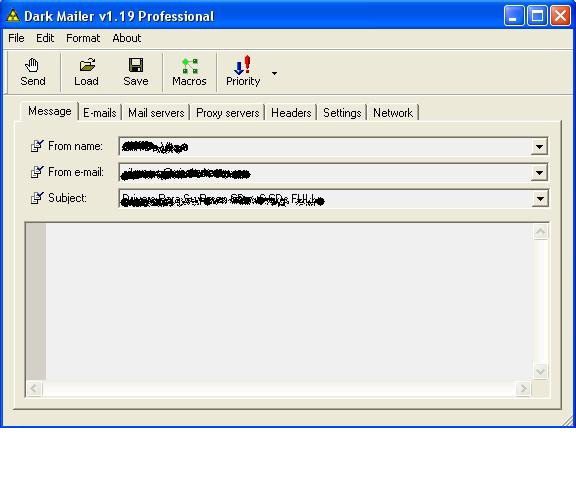
After opening the program main window will appear the same,as follows:
In this window, the first thing we have to do is simply touch the LOAD button located above the left to load the text file that contains advertising. Below is the main window, with the button highlighted to be opened for identification purposes.
Once that window is opened, another search window will appear, so to put the path where the file is ad text.It is recommended to save the HTML file in the same folder where is installed DarkMailer, in this case "Desktop" in
Windows.
Below is a figure which is clearly the type of window that is to appear.
This will locate the file you need.
Where it says "Search" appears as the default desktop, then you must select the path to find the correct file.
Once the display shows the correct file, double-click it and automatically be charged, being as follows.
The image shown above is as it should be. The message is loaded in sight "HTML Code" does not mean that customers receive the message that way, you will receive properly.
In the "From Name", "From Email" and "Subject" should not change anything, it automatically for this product have been charged with 20 different names, 20 different Emails and between 5 and 10 different Subjects. The program is set to every 30 mails that are sent to change the sender, email and the subject, making them rotate all contained in each shipment, to prevent servers sending spam detected.
Now, we load the email lists.
For that, we must go to the tab that is next to the one we are looking at right now is "message" ... the next tab is "emails" here we see how to load the txt list containing all emails from potential clients
The image we're seeing just shows the top of the window. In this, there are the tabs to configure all the shipping. In that image is highlighted with red circles show the tab "emails" which we clicking to visualize.
Once done, you should see the following window:
Well, I will explain a bit what we see in this window.
In this rectangle that appears empty and is labeled "this list is empty" there will appear all the lists to be loaded for shipping.
Then we have 3 lines down under the title of "Log Files" here means that configure what we want the program saved in the logs.
We can configure to save a file of emails sent, failed and non-existent.

We will configure the logs to start. NOTE: only be configured once, no need to configure these logs every time you close and open the program.
The first thing to touch is the yellow icon that appears on the right side of the window, as is shown below:
Once you touch this button opens a window style that was opened when Load the HTML file. In this window just what you need to do is locate the folder where we have the DarkMailer (desktop will be the default folder), once
found, the open and automatically displays all the files inside. Without touching nothing but enter into any other
folder, touch the button and ready OPEN (see figure below)
Once this process appear the path to this file on the line provided. To place the other two logs (Failed and Bad) is necessary to do the same procedure with this.
Ready, once finished loading the logs, we will proceed to load the files containing the mails, called by us "email list", which contain 30 000 addresses each.
To download these files, we must go on the rectangle that is labeled "this list is empty" and click the right mouse button. This will display a list with three options, of which we select "Add", as shown in the picture below.
Pressing this option will open a search window classic, we request you give the path to the files you wish to add to our "mailing list." This window is similar to that found when loading the HTML file and Log files seen before.
It is very important that all txt files sent to them in the file "Softw - DarkMailer.Zip" Be original unzipped folder within the program, to avoid confusion. That is if the program folder on the desktop, and this folder is called "DarkMailer" then we must create within the folder "DarkMailer" a subfolder called "lists", and unzip these files there. The folder "lists" would be replaced the following to the famous "Data" folder of AMS used in previous shipments. In short, it should be thus Desktop / DarkMailer / Lists Then in the search dialog of the wizard will guide txt files to this folder, to show us all the files we have available.
Note: While all files included, you should charge for a six lists, to avoid confusion and to better control the flow of emails. After showing us all, make the first double-click to load. When you repeat the process over five times more to be loaded for 6 to start the shipping lists, being as follows.
Keep in mind that in the left side of each list in each row, there is a check box that appears primed each time you add a list. If this box is uncheck, and we have not yet processed a shipment, we checked, otherwise the program will not let us continue.

In summary, for here we have loaded the text to send, we will automatically set the fields "From Name", "From Email" and "Subject", we have also posted the names and path to save the logs of each shipment and finally we loaded six lists we send.

Once done, the rest of the flaps should not be playing, because the mail server, the proxies and settings, will be changed from the central machine and send them to a file, that should only be replaced at no must now change any option in that case you may not leave the shipping correctly, so I recommend "Do not touch anything that is not specified in the manual" 

Before starting with the shipping, they will apply for performing only time a configuration change. This change is going to do as I said for the only time recently, and will allow us to automatically detect the DNS of the connection you are using and also configure an option that will allow us to pause shipments if the connection is dropped or disconnected, and take them up again if the same program achieved after several attempts to reconnect. For this, they must be facing the computer and ask assistance, MSN or by PHONE.

Now if we are in a position to begin shipments. As these items are sent by remote servers and Proxies may note several flaws, the most likely first start and has 2000 deliveries and 0 errors, numbers and then change to normal, remaining at approximately 80% of incorrect shipments. 

If you stay here until the all clear, then we will touch the send button as shown in the figure below. (The button is in the top left of the window progrm).
Pressing this button will start sending emails, starting with the first list marked the end, come to the second and so on until end all.
Once complete, touch the OK button and repeat the charging process of emails, deleting first those already  harged and sent. To do so, touch the right mouse button and select "Clear List", after that, the list is rejected, and the rectangle with the words "this list is empty" as before. Redo all the steps of loading lists and sending emails. 
Below is a picture of how emails are processed with this program.

About Shubham..

My photo
Jamshedpur, Jharkhand, India
A cant-live-without-technology type of teen...Blogger by hobby...